> ## Documentation Index
> Fetch the complete documentation index at: https://docs.xano.com/llms.txt
> Use this file to discover all available pages before exploring further.
# Instance Settings
> Manage an instance from the Manage Instance (⚙️) panel — connections, configuration, team access, billing, and upgrades
The **Instance Settings panel** is the menu that slides in when you click the icon next to an instance on your instance selection screen. It's the central place to connect to an instance, manage its configuration and infrastructure, control team access, and reach billing and developer tools — all without entering a workspace.
When it opens, the panel is headed **Manage Instance** and shows the instance name and domain at the top.
The options you are able to utilize depend on your **plan**, your **role** on the instance (Owner, Admin, etc.), and which **add-ons** are enabled.
## Opening the panel
Head to your [instance list](https://app.xano.com/instance).
Hover over the instance you want to manage and click the icon.
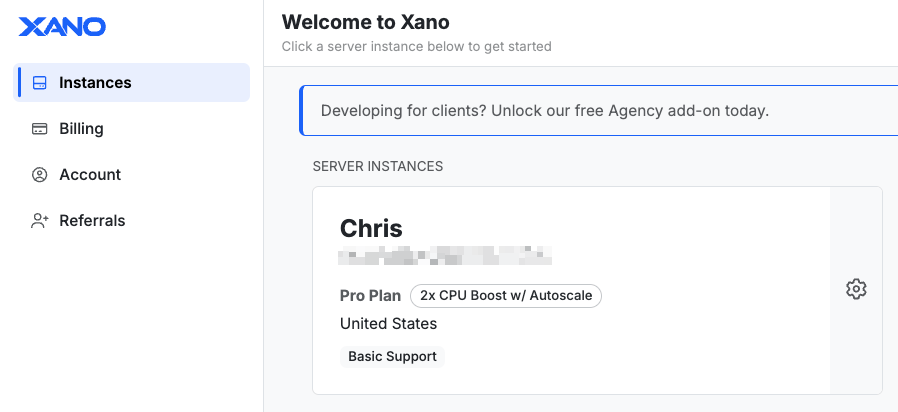 The settings panel slides in from the right. Select any option to open its panel.
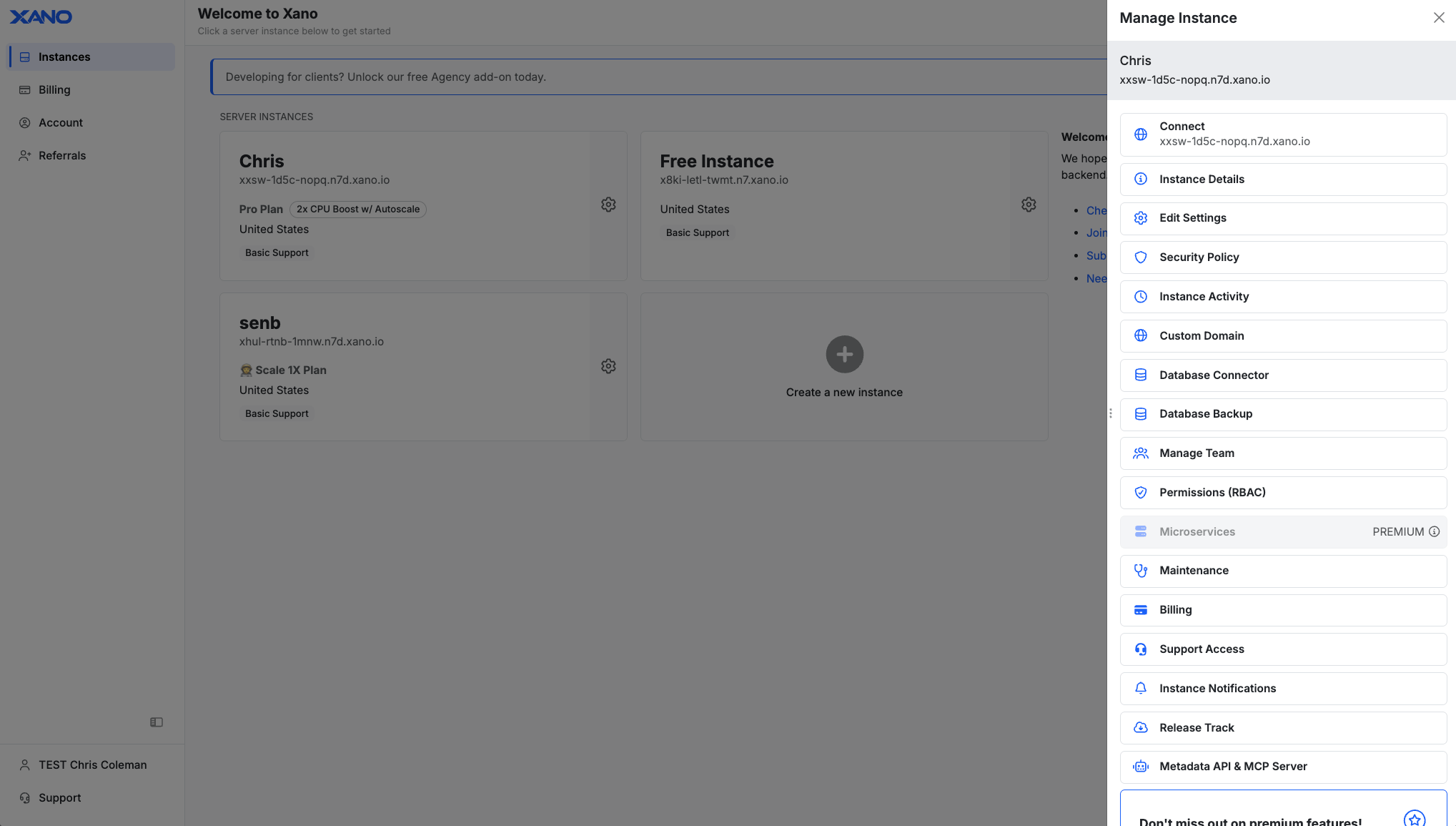 ## Options in the panel
The panel lists the following options, top to bottom. Options with their own guide link out to it; the rest are described below.
Connect to the instance and enter its workspace(s)
Read-only summary of plan, domains, and resources
Display name, description, and merge strategy
Manage security rules for this instance, such as forcing 2FA and inactivity timers
Audit trail of actions taken against the instance, like logins and settings changes
Serve your Xano backend from your own domain
Connect external tools to your Xano PostgreSQL database
Create and restore database backups
Invite and manage instance team members
Roles and granular permissions for team members
Deploy microservices alongside the instance
Instance optimization and maintenance routines
Access previous invoices
Grant or revoke Xano support team access to your instance
Notification preferences for instance events, such as downtime
Control when Xano updates are applied
Metadata API endpoints and MCP server details
## Connect
Opens the instance and takes you into its workspace(s). This can be helpful if your instance is in a special billing state and you need to regain access, or your custom domain is failing.
## Instance Details
A read-only summary of the instance — plan, region, domains, compliance status, and resource usage.
*Availability: not shown on free instances.*
## Options in the panel
The panel lists the following options, top to bottom. Options with their own guide link out to it; the rest are described below.
Connect to the instance and enter its workspace(s)
Read-only summary of plan, domains, and resources
Display name, description, and merge strategy
Manage security rules for this instance, such as forcing 2FA and inactivity timers
Audit trail of actions taken against the instance, like logins and settings changes
Serve your Xano backend from your own domain
Connect external tools to your Xano PostgreSQL database
Create and restore database backups
Invite and manage instance team members
Roles and granular permissions for team members
Deploy microservices alongside the instance
Instance optimization and maintenance routines
Access previous invoices
Grant or revoke Xano support team access to your instance
Notification preferences for instance events, such as downtime
Control when Xano updates are applied
Metadata API endpoints and MCP server details
## Connect
Opens the instance and takes you into its workspace(s). This can be helpful if your instance is in a special billing state and you need to regain access, or your custom domain is failing.
## Instance Details
A read-only summary of the instance — plan, region, domains, compliance status, and resource usage.
*Availability: not shown on free instances.*
 ## Edit Settings
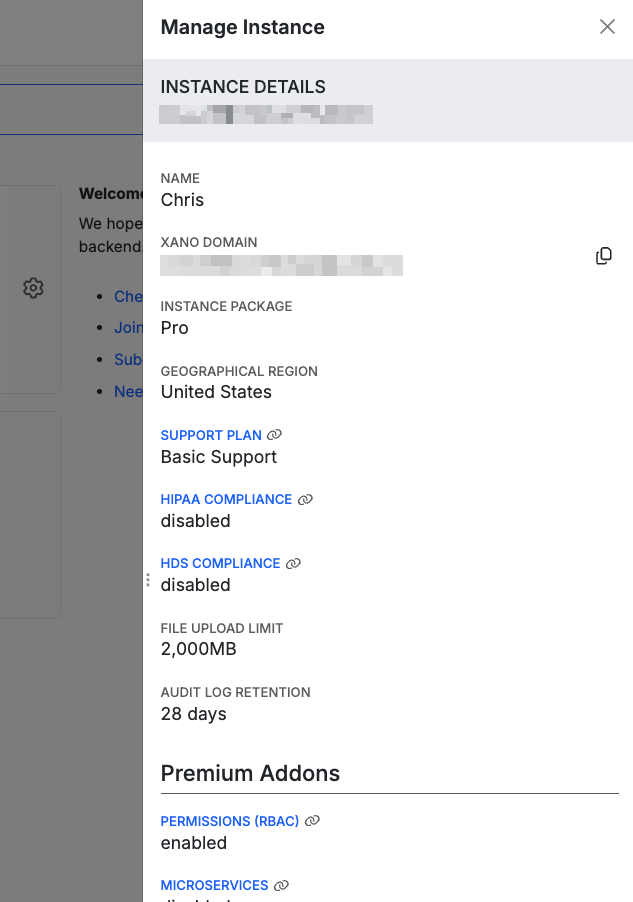
Update the instance display name, description, and merge strategy.
*Availability: Admin or Owner.*
* **Display Name** - The friendly display name of the instance
* **Description** - A description of the instance
* **Default Merge Strategy** - All Items Selected / No Items Selected, defines the default behavior for features like branch merging and Xano Link
## Edit Settings
Update the instance display name, description, and merge strategy.
*Availability: Admin or Owner.*
* **Display Name** - The friendly display name of the instance
* **Description** - A description of the instance
* **Default Merge Strategy** - All Items Selected / No Items Selected, defines the default behavior for features like branch merging and Xano Link
 ## Custom Domain
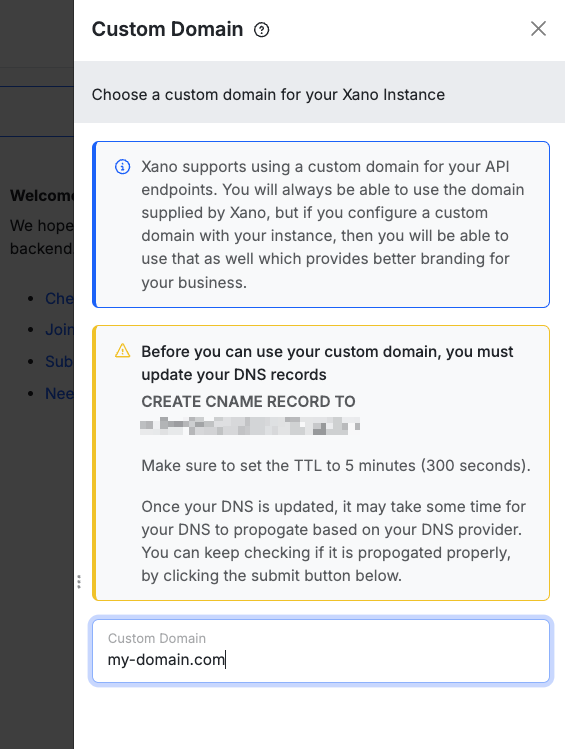
Xano has support for users on any of our paid plans to set up a custom domain for their Xano backend.
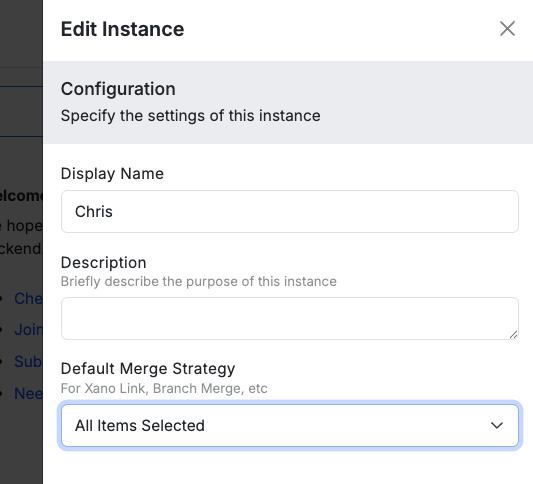
From the instance selection screen, click the icon and choose **Custom Domain**.
Before you can use your custom domain, you must update your DNS records.
Create a CNAME record pointing to your instance URL: `x123-b456-i789.n7d.xano.io`
Make sure to set the TTL to `5 minutes (300 seconds)`.
Once your DNS is updated, it may take some time for your DNS to propagate based on your DNS provider. You can keep checking if it is propagated properly, by clicking the Submit button on the custom domain settings panel.
## Custom Domain
Xano has support for users on any of our paid plans to set up a custom domain for their Xano backend.
From the instance selection screen, click the icon and choose **Custom Domain**.
Before you can use your custom domain, you must update your DNS records.
Create a CNAME record pointing to your instance URL: `x123-b456-i789.n7d.xano.io`
Make sure to set the TTL to `5 minutes (300 seconds)`.
Once your DNS is updated, it may take some time for your DNS to propagate based on your DNS provider. You can keep checking if it is propagated properly, by clicking the Submit button on the custom domain settings panel.
 ### Connect via Xano Domain
In some cases, you may still want to connect to your Xano instance via the original Xano domain. To connect through your Xano domain, head to your instance selection screen. Click the icon and choose "Connect Via Xano Domain".
## Database Connector
Database Connector is included in our Essential and Pro plans. If you're on a grandfathered plan, please visit your [Billing page](https://app.xano.com/billing?mode=master) for more information.
You have the option to connect your Xano instance's PostgreSQL database directly with an external application or service. This can be useful if there is a platform for manipulating your database that you prefer to use over the Xano interface, creating custom backup and restore solutions, or even performing data analytics.
Use care when accessing your database directly. This type of connection removes a significant portion of normal checks and balances for data validity that using Xano directly provides.
**Proceed with caution.**
#### How to Access the Database Connector
On your instance selection screen, click the icon, and in the panel that opens, choose Database Connector.
The panel that opens is split into two sections, Details and Settings.
### Connect via Xano Domain
In some cases, you may still want to connect to your Xano instance via the original Xano domain. To connect through your Xano domain, head to your instance selection screen. Click the icon and choose "Connect Via Xano Domain".
## Database Connector
Database Connector is included in our Essential and Pro plans. If you're on a grandfathered plan, please visit your [Billing page](https://app.xano.com/billing?mode=master) for more information.
You have the option to connect your Xano instance's PostgreSQL database directly with an external application or service. This can be useful if there is a platform for manipulating your database that you prefer to use over the Xano interface, creating custom backup and restore solutions, or even performing data analytics.
Use care when accessing your database directly. This type of connection removes a significant portion of normal checks and balances for data validity that using Xano directly provides.
**Proceed with caution.**
#### How to Access the Database Connector
On your instance selection screen, click the icon, and in the panel that opens, choose Database Connector.
The panel that opens is split into two sections, Details and Settings.
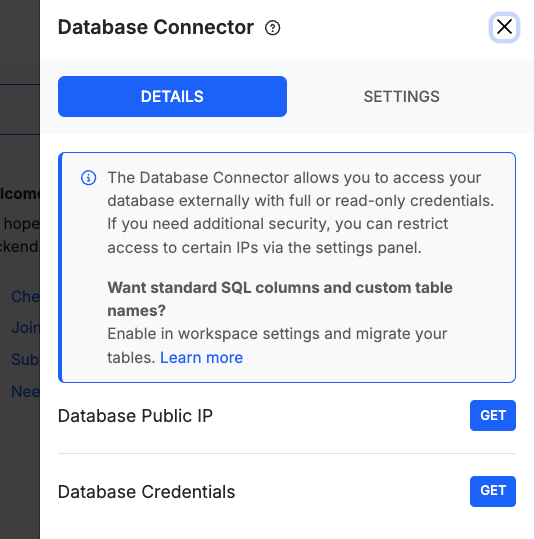 Details allows you to retrieve the access information for a direct database connection.
Settings allows you to enable and use an allow list, to limit direct database connections to specific IP addresses.
1. Get your database's public IP
2. Get your database credentials
3. Settings Panel
4. Add an IP address to your allow list
Clicking both of the "Get" buttons will provide us with the database IP and two sets of credentials, full-access and read-only. Check the box to show the credentials, or click the copy button to copy them to your clipboard.
Details allows you to retrieve the access information for a direct database connection.
Settings allows you to enable and use an allow list, to limit direct database connections to specific IP addresses.
1. Get your database's public IP
2. Get your database credentials
3. Settings Panel
4. Add an IP address to your allow list
Clicking both of the "Get" buttons will provide us with the database IP and two sets of credentials, full-access and read-only. Check the box to show the credentials, or click the copy button to copy them to your clipboard.
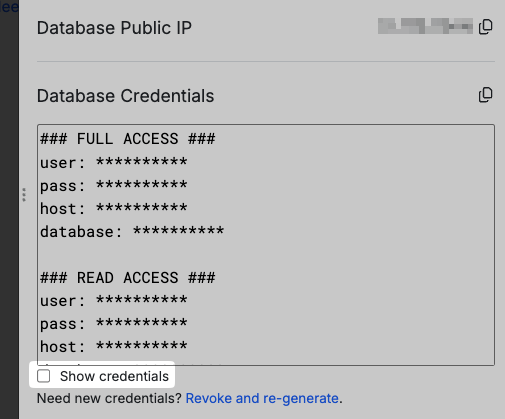 From this panel, you can also **revoke and re-generate** your database credentials, should the need arise.
####
You can use any application you'd like that is capable of connecting to a PostgreSQL database. In this example, we'll be using Navicat.
Select 'Connection' in the top-left, and fill in your credentials and the IP received from Xano.
From this panel, you can also **revoke and re-generate** your database credentials, should the need arise.
####
You can use any application you'd like that is capable of connecting to a PostgreSQL database. In this example, we'll be using Navicat.
Select 'Connection' in the top-left, and fill in your credentials and the IP received from Xano.
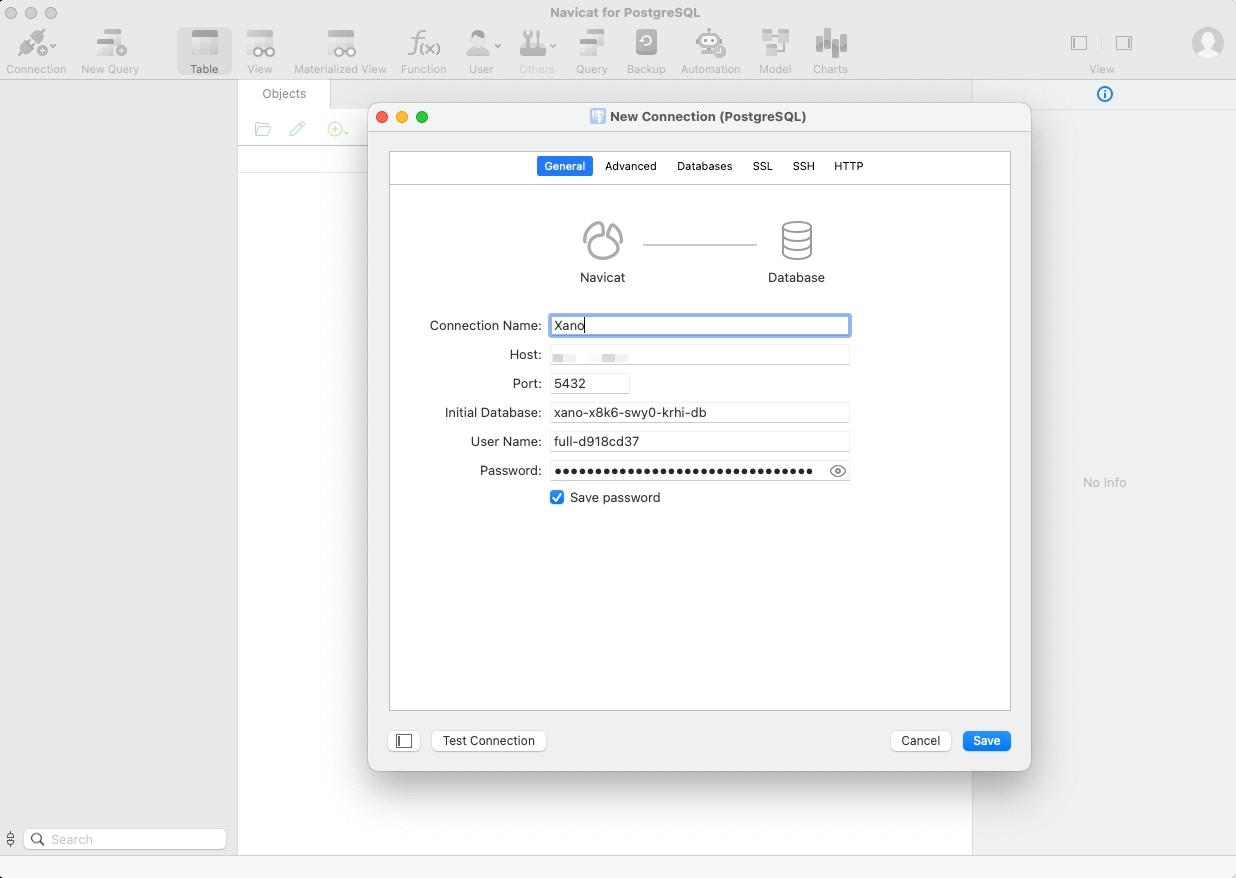 Click 'Save' to save the connection. We can now navigate the PostgreSQL database from Xano using Navicat. We can even add / update data, run queries, etc...
 ## Support Access
Grant or revoke Xano support's access to your instance for troubleshooting.
*Availability: Admin or Owner.*
## Instance Notifications
Configure notification preferences for instance-level events. Only instance admins can receive notifications. You can choose to notify all or only select team members from this panel.
## Options shown in specific cases
Some options only appear in the panel when the instance meets certain conditions:
These won't appear for every instance. They surface based on your domain setup, build, or instance type.
* **Connect Via Xano Domain** — appears when a custom domain is configured, letting you connect through the original Xano-issued domain instead. [Read more](#connect-via-xano-domain)
* **Agency Profile** — manage your agency profile and listing. Appears on agency instances. [Read more](/agencies/agency-features/agency-profile)
* **Resource Management** — manage compute and resources for BYOC / Enterprise instances.
## Upgrading an Instance
**Why should you upgrade?** Free accounts come with **one workspace that shares resources with other Xano customers**. It also is limited on capabilities such as storage, database records, and processing power. You'll easily be able to prototype most of your application in this type of account, but upgrading to a paid plan will give you a more powerful instance that can scale with your needs. [View plan pricing and details](http://www.xano.com/pricing).
**What can I upgrade to?** If you are on our Essential plan, your next step would be Pro. Upgrades from Essential to Pro are able to make use of a 48 hour no questions asked refund policy -- if you find that Pro is not solving the requirement that prompted the upgrade, reach out to support within 48 hours and we'll roll you back and refund the difference.
**What does upgrading your instance actually do?** Upgrading your instance migrates your data and business logic to a brand new, faster instance. If you upgrade to the Essential or Pro plan, you'll be put on your own dedicated instance for maximum performance and scalability.
**How long does upgrading take?** Upgrading an instance usually only takes seconds to complete.
## **How to upgrade an instance**
### **Step 1 - Go to the Billing page**
Go to the Billing section within Xano and click Change Plan
## Support Access
Grant or revoke Xano support's access to your instance for troubleshooting.
*Availability: Admin or Owner.*
## Instance Notifications
Configure notification preferences for instance-level events. Only instance admins can receive notifications. You can choose to notify all or only select team members from this panel.
## Options shown in specific cases
Some options only appear in the panel when the instance meets certain conditions:
These won't appear for every instance. They surface based on your domain setup, build, or instance type.
* **Connect Via Xano Domain** — appears when a custom domain is configured, letting you connect through the original Xano-issued domain instead. [Read more](#connect-via-xano-domain)
* **Agency Profile** — manage your agency profile and listing. Appears on agency instances. [Read more](/agencies/agency-features/agency-profile)
* **Resource Management** — manage compute and resources for BYOC / Enterprise instances.
## Upgrading an Instance
**Why should you upgrade?** Free accounts come with **one workspace that shares resources with other Xano customers**. It also is limited on capabilities such as storage, database records, and processing power. You'll easily be able to prototype most of your application in this type of account, but upgrading to a paid plan will give you a more powerful instance that can scale with your needs. [View plan pricing and details](http://www.xano.com/pricing).
**What can I upgrade to?** If you are on our Essential plan, your next step would be Pro. Upgrades from Essential to Pro are able to make use of a 48 hour no questions asked refund policy -- if you find that Pro is not solving the requirement that prompted the upgrade, reach out to support within 48 hours and we'll roll you back and refund the difference.
**What does upgrading your instance actually do?** Upgrading your instance migrates your data and business logic to a brand new, faster instance. If you upgrade to the Essential or Pro plan, you'll be put on your own dedicated instance for maximum performance and scalability.
**How long does upgrading take?** Upgrading an instance usually only takes seconds to complete.
## **How to upgrade an instance**
### **Step 1 - Go to the Billing page**
Go to the Billing section within Xano and click Change Plan
 ### **Step 2 - Make your changes**
Click Manage Add-ons to add on additional features to your current subscription plan, or scroll down and click Select on the plan you want to upgrade to.
Once you've made your selections, click Final Review & Checkout.
### **Does upgrading happen automatically once I pay?**
Sometimes, you'll need to update the URLs your frontend or other external connections use to connect to your Xano backend. This is usually referred to as your **API BASE URL** or **API ORIGIN**. This might happen if:
* You are adding certain features to your plan, such as Static IP
* You are upgrading from **free** to **paid** (paid to paid upgrades on the same region do not need to update their URL)
* You are changing your server region
To ensure a seamless transition for your users, please read this section carefully.
Click Start Upgrade. This doesn't start the upgrade right away. This will bring up a dialog telling you what you need to be aware of before continuing.
#### Write down your new API URL Origin
**What is an API URL ORIGIN anyway?** It's the first part of any API endpoint you have hooked up to the front-end. See below for an example
```
YOUR API URL ORIGIN (example)
https://xd6b-cfde-62f6.dev.xano.io/
YOUR FULL API ENDPOINT URL FOR 'GET USERS' (example)
https://xd6b-cfde-62f6.dev.xano.io/api:4qSkfrOl/user
```
Update your frontend and any other external connections with the new API URL ORIGIN if you are upgrading from the free plan or changing your server region.
Once you follow the steps above, type **I UNDERSTAND** into the box and click the button "Start upgrade now".
## Related instance settings
These are configured outside the Manage Instance panel (typically through the upgrade / billing flow), but they're instance-level settings you may be looking for:
* [Change Server Region](/xano-features/instance-settings/change-server-region)
* [Static IP (Outgoing)](/xano-features/instance-settings/static-ip-outgoing)
### **Step 2 - Make your changes**
Click Manage Add-ons to add on additional features to your current subscription plan, or scroll down and click Select on the plan you want to upgrade to.
Once you've made your selections, click Final Review & Checkout.
### **Does upgrading happen automatically once I pay?**
Sometimes, you'll need to update the URLs your frontend or other external connections use to connect to your Xano backend. This is usually referred to as your **API BASE URL** or **API ORIGIN**. This might happen if:
* You are adding certain features to your plan, such as Static IP
* You are upgrading from **free** to **paid** (paid to paid upgrades on the same region do not need to update their URL)
* You are changing your server region
To ensure a seamless transition for your users, please read this section carefully.
Click Start Upgrade. This doesn't start the upgrade right away. This will bring up a dialog telling you what you need to be aware of before continuing.
#### Write down your new API URL Origin
**What is an API URL ORIGIN anyway?** It's the first part of any API endpoint you have hooked up to the front-end. See below for an example
```
YOUR API URL ORIGIN (example)
https://xd6b-cfde-62f6.dev.xano.io/
YOUR FULL API ENDPOINT URL FOR 'GET USERS' (example)
https://xd6b-cfde-62f6.dev.xano.io/api:4qSkfrOl/user
```
Update your frontend and any other external connections with the new API URL ORIGIN if you are upgrading from the free plan or changing your server region.
Once you follow the steps above, type **I UNDERSTAND** into the box and click the button "Start upgrade now".
## Related instance settings
These are configured outside the Manage Instance panel (typically through the upgrade / billing flow), but they're instance-level settings you may be looking for:
* [Change Server Region](/xano-features/instance-settings/change-server-region)
* [Static IP (Outgoing)](/xano-features/instance-settings/static-ip-outgoing)