> ## Documentation Index
> Fetch the complete documentation index at: https://docs.xano.com/llms.txt
> Use this file to discover all available pages before exploring further.
# Swagger/OpenAPI Docs
> Using Swagger/OpenAPI to document your Xano APIs for easy integration.
Xano automatically generates **Swagger/OpenAPI** documentation for your APIs, making it easy to share your endpoints with frontend developers, AI app builders, AI coding assistants, or third-party services. It's also a quick way to visualize and test your API endpoints.
The API documentation is accessible via a unique URL for individual APIs, each API group, or for an entire workspace. These URLs can be shared with anyone who needs to understand or interact with your API. The URLs can also be protected with a token, or disabled entirely.
You can also provide your Swagger docs to an AI app builder to give it quick context of your application when building frontends or other external tools that connect to your APIs.
## Group Level Documentation
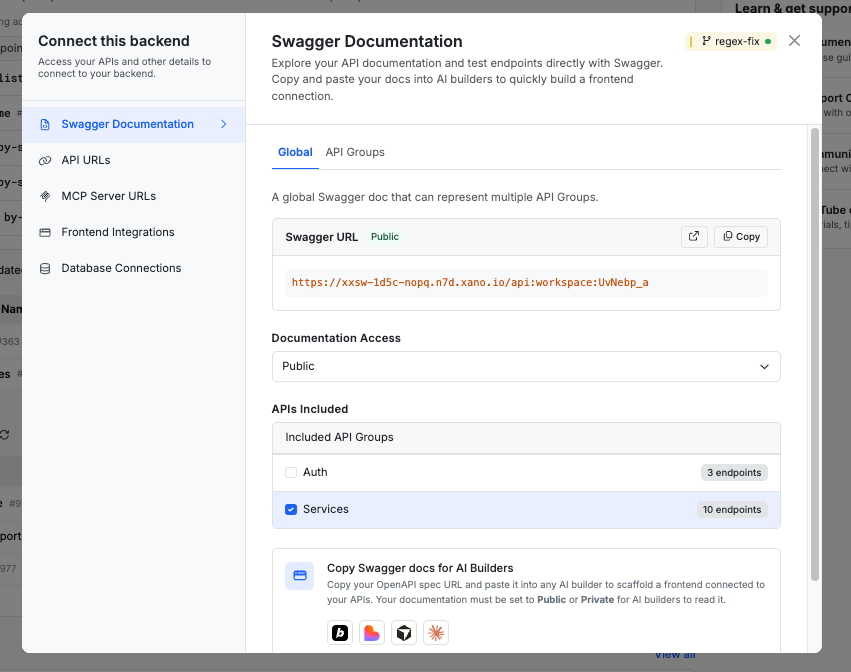
From anywhere in Xano, click Connect this backend in the header.
In the modal that opens, use the **Global** tab to modify workspace-wide documentation settings, and the **API Groups** tab to modify per-group documentation settings.
 ## Documentation Access Levels
**Public**
Public docs have no restrictions and are accessible by anyone with the URL.
**Private**
Private docs have a publicly accessible URL, but that URL must also include a token to gain access. This is the recommended setting.
**Disabled**
No documentation will be available.
## Accessing the Documentation
Once you've enabled your docs, you can access the URLs to them from the same modal at any time by clicking the to copy the URL, or to open them in a new tab.
## Using the Documentation
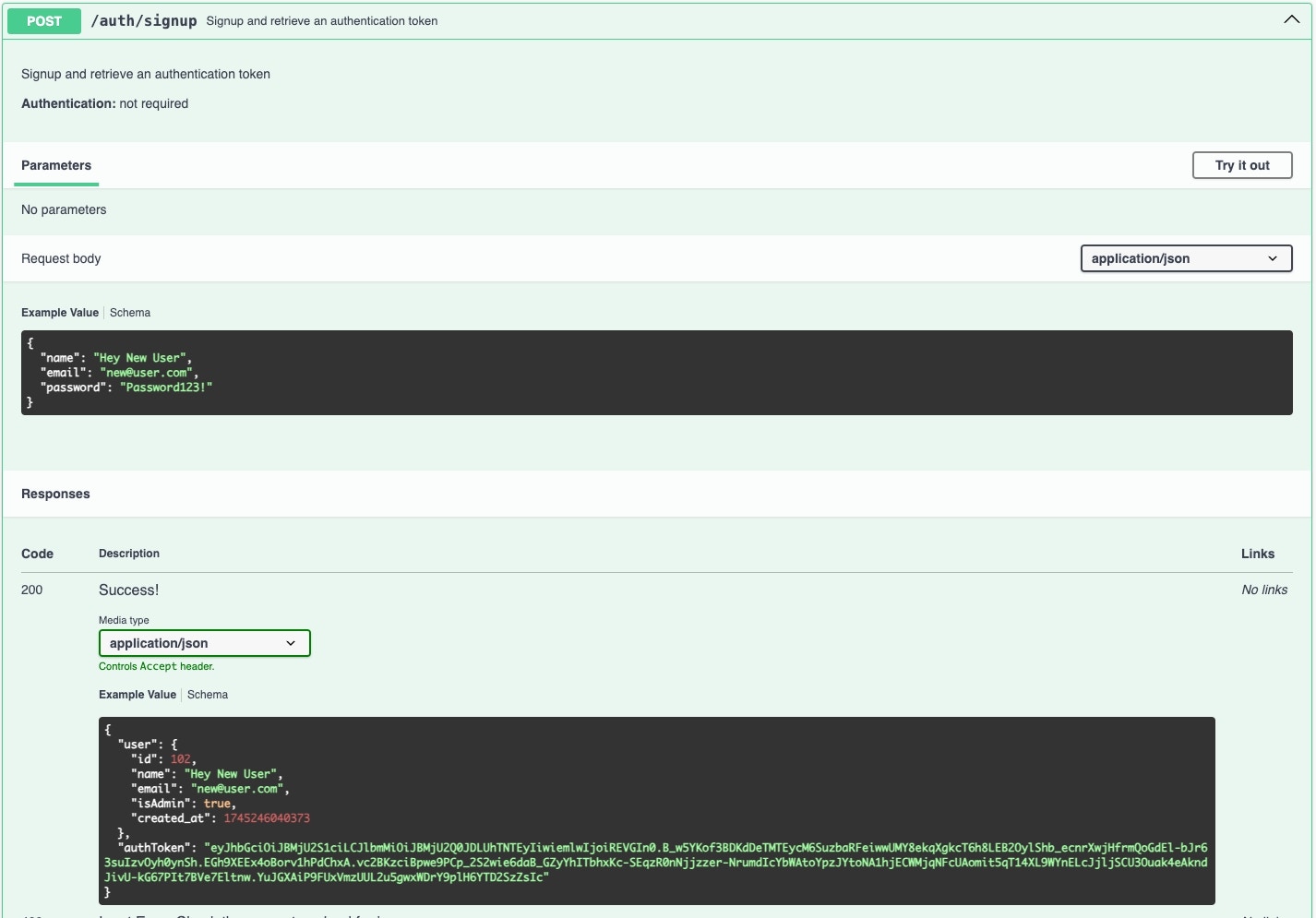
Each API will show you the method, the API name, and the description on the left side.
## Documentation Access Levels
**Public**
Public docs have no restrictions and are accessible by anyone with the URL.
**Private**
Private docs have a publicly accessible URL, but that URL must also include a token to gain access. This is the recommended setting.
**Disabled**
No documentation will be available.
## Accessing the Documentation
Once you've enabled your docs, you can access the URLs to them from the same modal at any time by clicking the to copy the URL, or to open them in a new tab.
## Using the Documentation
Each API will show you the method, the API name, and the description on the left side.
 On the right, you'll see a 🔓 icon if that API requires authentication.
 Click the `V` to interact with your API of choice.
If any of the API(s) you want to interact with require authentication, click
Click the `V` to interact with your API of choice.
If any of the API(s) you want to interact with require authentication, click  at the top of the page to supply an authentication token.
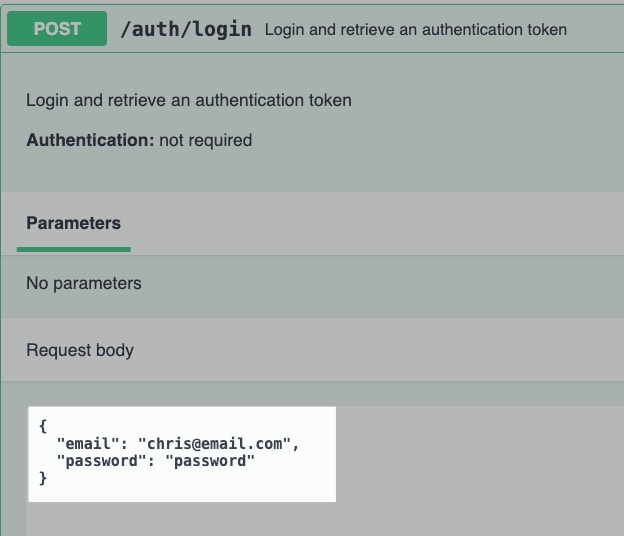
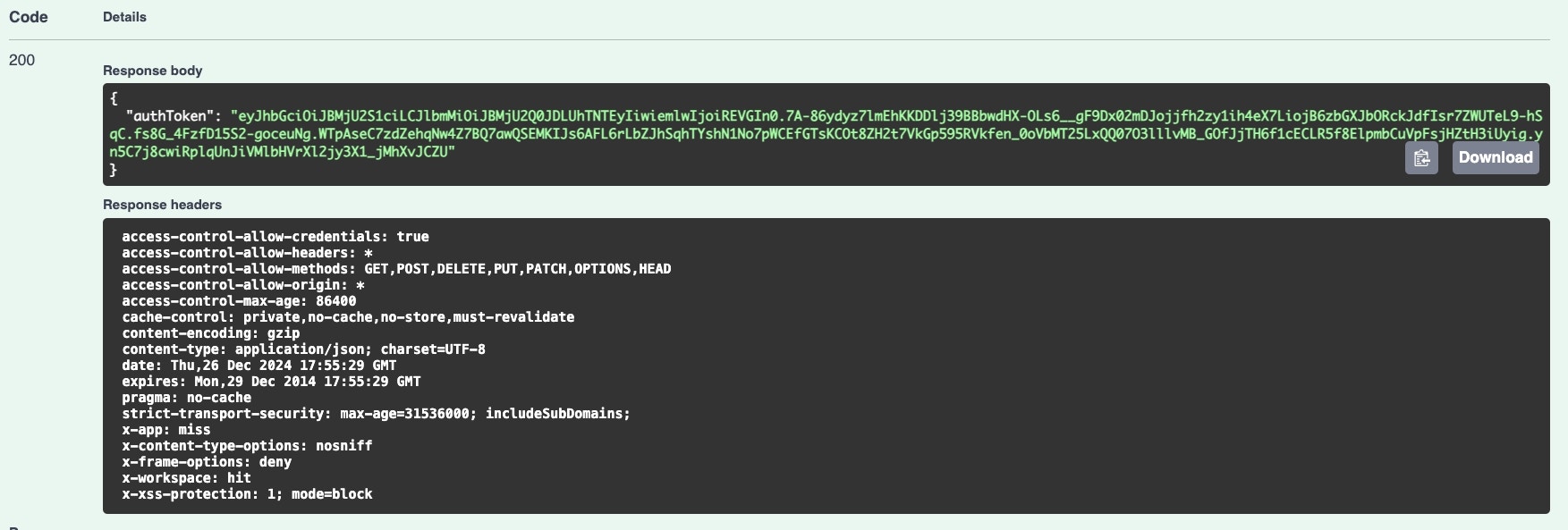
 You can review the response given below.
 ## Additional Features
### Defining Sample Inputs and Responses
When [testing your function stacks](/testing-debugging/testing-and-debugging-function-stacks) in Xano, you can define sample input and output examples for your Swagger documentation.
It is important that you do this to ensure that your documentation is as effective as possible, as well as for helping AI models understand what's expected when interacting with your APIs.
## Additional Features
### Defining Sample Inputs and Responses
When [testing your function stacks](/testing-debugging/testing-and-debugging-function-stacks) in Xano, you can define sample input and output examples for your Swagger documentation.
It is important that you do this to ensure that your documentation is as effective as possible, as well as for helping AI models understand what's expected when interacting with your APIs.
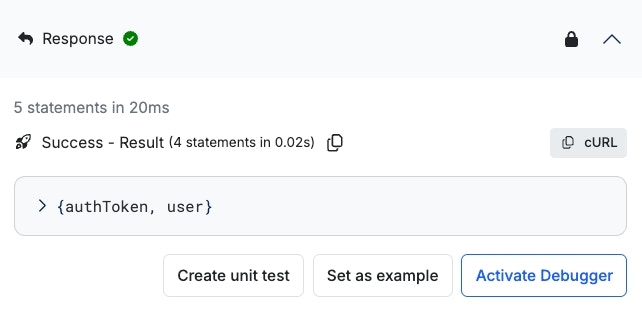 Make sure these do not include any sensitive information.
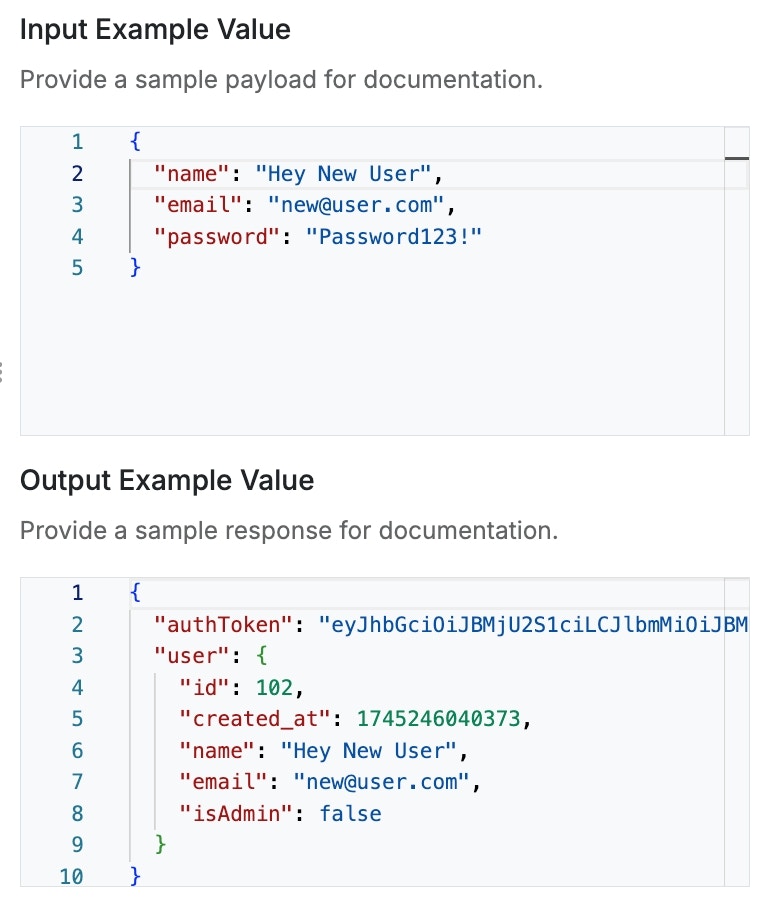
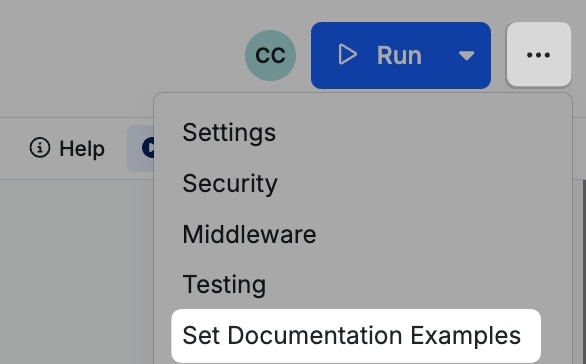
 If you need to make adjustments later, you can do so from the settings menu.
 ### Copy / Copy as cURL
Throughout the documentation, you'll see
### Copy / Copy as cURL
Throughout the documentation, you'll see  icons. These will let you quickly copy the contents of that element, and in the presence of a cURL command, copy that command to quickly paste into a terminal or other API / testing platform of choice, such as [Postman](https://www.postman.com/).
### JSON OpenAPI Spec
icons. These will let you quickly copy the contents of that element, and in the presence of a cURL command, copy that command to quickly paste into a terminal or other API / testing platform of choice, such as [Postman](https://www.postman.com/).
### JSON OpenAPI Spec
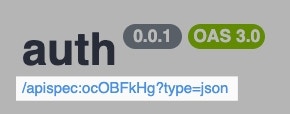 You can click the link at the top of the page to access a JSON-formatted version of your API spec. This is useful for [AI app builders](/connecting-to-a-frontend/ai-app-builders), [AI coding assistants](/connecting-to-a-frontend/custom-coded-apps), and other external platforms that rely on standardized API specifications.